clearMDM Customer Relationships
Customer Relationships extend the value of trusted Golden Records by enabling organisations to define and manage meaningful connections between customers. Rather than simply identifying and removing duplicate records, this feature helps build a richer Customer 360 view by representing how customers are related to one another in the real world.
Examples of customer relationships include parent and subsidiary organisations, household members, employers and employees, or other business-specific associations. These relationships provide valuable context that can improve data quality, reporting, analytics, and customer engagement.
For a more detailed explanation of the concepts behind Customer Relationships and Customer 360, see the following blog post.
Initial Setup
Before you can use the Customer Relationships feature, some configuration is required. This ensures that relationships can be created and managed correctly within clearMDM.
Unlike the matching and merging process, Customer Relationships do not combine two records into a single Golden Record. Instead, they create an association between two or more records while preserving each record as an independent entity.
This allows related customers to be linked together, even though they may have different personal or organisational information.
For example, two individuals living at the same address can be linked through a household relationship. Although they share the same address, each person retains their own contact details, such as their mobile number, email address, and other personal information.
Similarly, Customer Relationships can be used to represent other real-world connections, such as parent and subsidiary organisations, spouses, employees and employers, or any other relationship that is meaningful to your business.
Configuring the Target Object
To enable Customer Relationships, you must first configure the appropriate Target Object.
The following sections describe the configuration required before relationships can be created and managed within clearMDM.
Note: Reparenting, Conversion, Data Quality rules will all need de-activating.
Configuring Merge Settings
For Secondary Target Objects only, navigate to the Merge Settings tab.
Two configuration options are available:
Is Relationship Only?
When this option is set to True, the merge engine does not merge matched records into a single Golden Record. Instead, it creates a relationship between the matched records while preserving each record as a separate entity.
Use this option when you want to identify related records without combining their data.
Is ACR?
When this option is set to True, the merge engine creates Account Contact Relationships (ACRs) between matched records instead of performing a merge.
This option is intended for scenarios where matched records represent account and contact entities that should be linked using an Account Contact Relationship.
Note: Account Contact Relationships (ACRs) are used to associate contacts with one or more accounts without merging the underlying records.
When Is ACR? is set to True, two additional fields become mandatory and must be populated:
Relationship Role
Specify the relationship role that will be assigned when an Account Contact Relationship (ACR) is created. This value defines the nature of the relationship between the account and the contact (for example, Decision Maker, Billing Contact, or Primary Contact, depending on your implementation).
Relationship Identifier Field Name
Specify the field that contains the unique identifier used to establish the Account Contact Relationship. This field enables the merge engine to correctly identify and create the relationship between the matched records.
Both fields must be configured before the merge engine can successfully create Account Contact Relationships.
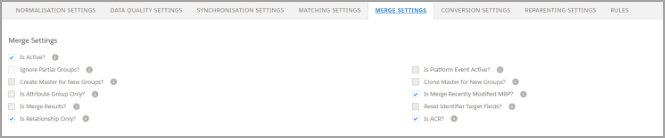
Where Is Relationship Only? is set to True, the following fields will need populating:
- Related From Field Name
- Related To Field Name
- Related From Realtionship Type
Configuring the Data Source
To enable Customer Relationships, you must configure the appropriate Data Source.
Navigate to the Merge Settings tab for the required Data Source.
The following configuration options are available:
Identifier Source Field Name
Specify the field on the Source Record that contains the identifier to be copied to the Master Record. This identifier is used when creating customer relationships.
Identifier Target Field Name
Specify the field on the Master Record where the identifier from the Source Record will be stored. The merge engine populates this field using the value from the Identifier Source Field Name.
Ensure that both fields are configured correctly so that the identifier is transferred during the merge process and can be used to establish customer relationships.

Configuring Page Layouts
To display and manage Customer Relationships within clearMDM, you must add the Relationships related list to the appropriate Object Page Layout.
Navigate to the page layout for each object that will use the Customer Relationships feature and add the Relationships related list to the layout.
Once configured, users will be able to view and manage customer relationships directly from the object’s record page.
Configuration Check List
Before using Customer Relationships, ensure you have completed the following:
✓ Configured the Target Object
✓ Configured the Merge Settings
✓ Configured the Data Source
✓ Updated the required Page Layouts
Need Help?
If you require any assistance configuring the Customer Relationships feature, please do not hesitate to contact our support team. We will be happy to help you with the setup and answer any questions you may have.
Article last reviewed: 2026-07-16