clearMDM Data Sources
A Data Source defines a source object to target object mapping. Record matching and merging operations start with a Target Object and process all Data Sources which have the same Target Object defined.
Account Data Source
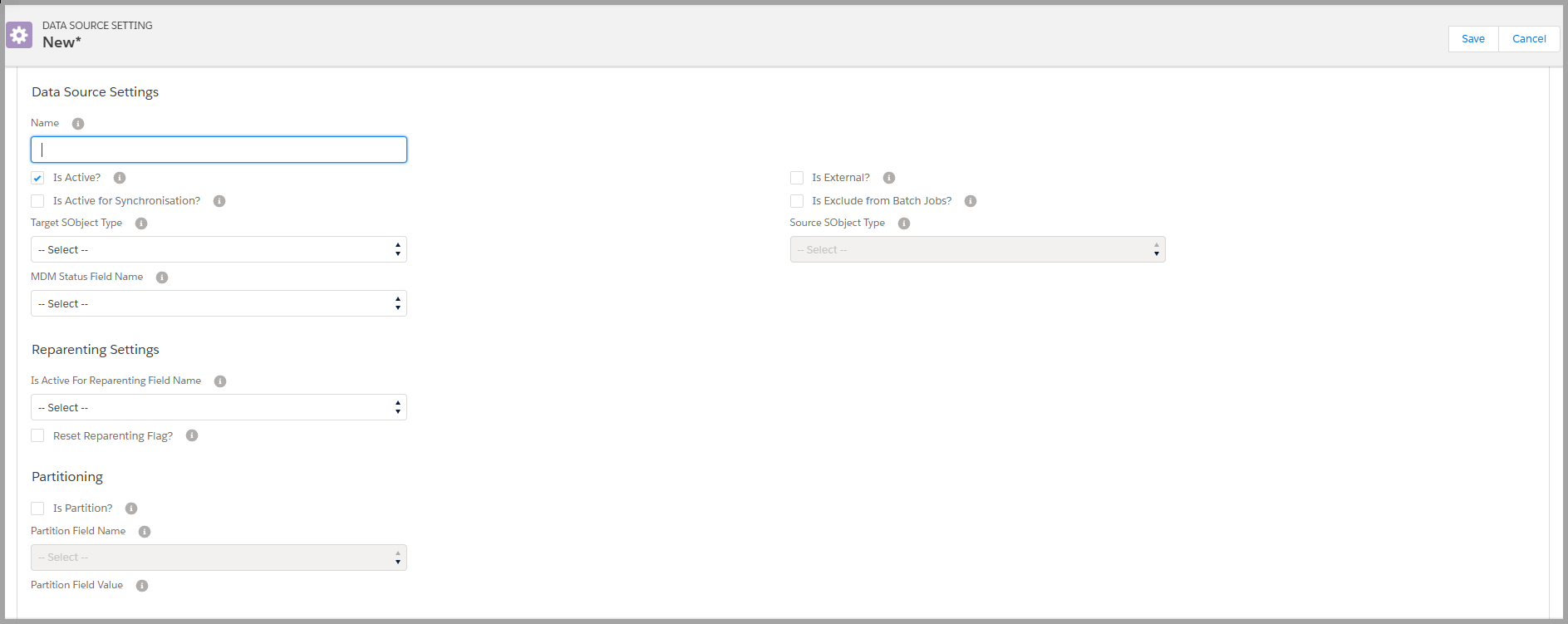
Follow these steps to setup an example Account Data Source:
- Within clearMDM click on the Settings tab.
- Click on the Data Sources tab.
- Click on Add Data Source.
- Ensure the following fields are populated:
- Name = Account
- Is Active? = Checked
- Is Active for Synchronisation? = Checked
- Target SObject Type = Account
- MDM Status Field name = MDM Status
- Is Active for Reparenting Field Name = Is Active for Reparenting ?
Matching Settings
Ensure the following fields are populated in the Matching Settings:
- Is Active? = Checked
- Check Matching State on Save? = Checked
- Master Records Active for Matching? = Checked
- Last Matching Date Field Name = Last Matching Date
- Reset Source Record Matching Flag? = Checked
- Master Record Flag Field Name = Is Master Record?
- Is Active for Matching Field Name = Is Active for Matching?
Merge Settings
Ensure the following fields are populatd in the Merge Settings:
- Is Active? = Checked
- Master Record Id Source Field Name = Master Account
- Click on Save.
If Reparenting is also required ( ie. Reparent Cases or Tasks to the Master Record), then follow these steps:
- Within the Data Source, select the Child Object Relationships.
- Within the Reparent? column, check each Child Object Type that requires reparenting.
- Click on Save.
The following demo provides an overview of the Data Source Settings.
To find out more about clearMDM, please do not hesitate to contact us at hello@clearmdm.com.
Article last reviewed: 2026-02-25